
How Hackers Use Wireshark to Capture Passwords and Network Data
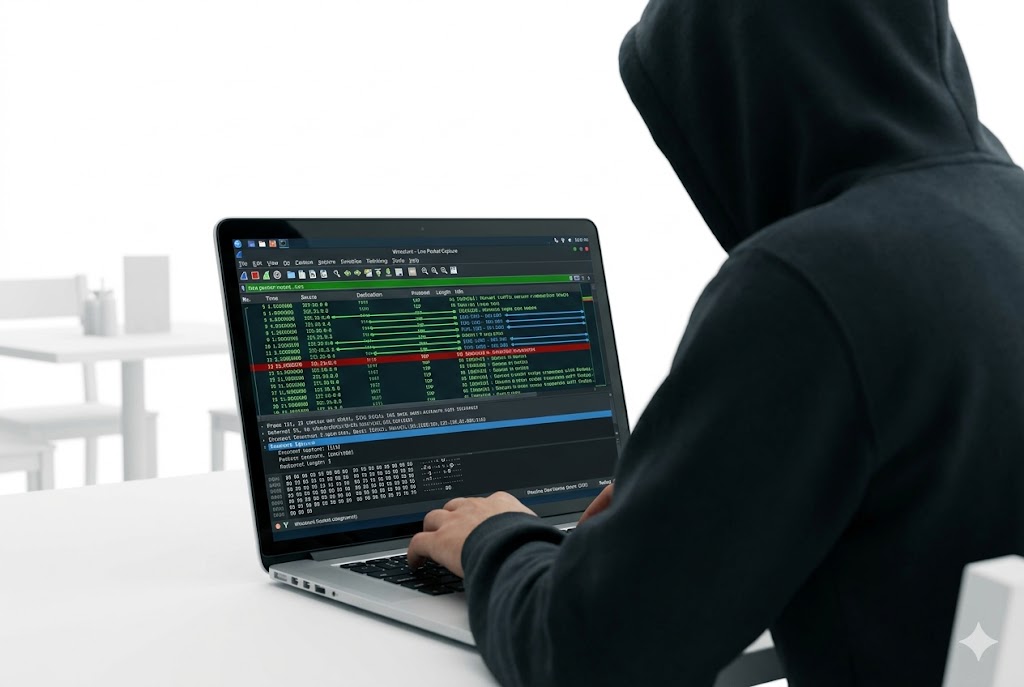
You open your laptop at a coffee shop. You type your email password. You hit login. What you do not see is the person two tables away who just watched that password travel across the network in plain text captured, decoded, and logged in less than a second.
They did not use a sophisticated exploit. They did not need one. They opened Wireshark, selected a network interface, and pressed start. That was it.
Wireshark is the world’s most widely used network protocol analyzer. It is free, open source, and built into every major penetration testing distribution. Security professionals use it to diagnose networks, investigate incidents, and study traffic. Attackers use it to capture credentials, session tokens, and sensitive data flowing across unencrypted connections. Understanding how it works from both sides is fundamental to web security.
What Wireshark Actually Does
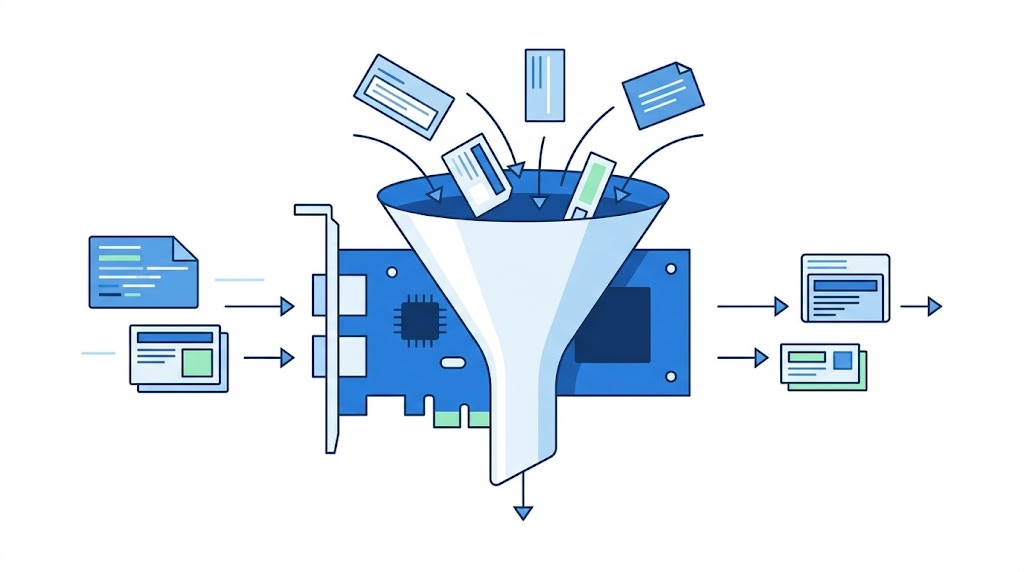
When your laptop sends or receives data, that data travels as packets (small chunks of information) that move across the network and get reassembled at the destination. Every packet has a header containing the source, destination, protocol, and other metadata, plus a payload containing the actual data.
Wireshark puts the network interface into promiscuous mode meaning it captures every packet on the network segment, not just packets addressed to your machine. Every packet that flows past is caught, decoded, and displayed in real time with full protocol dissection.
On a hub-based or wireless network, this means the attacker sees every device’s traffic. On a switched network, the attacker first needs to execute an ARP poisoning attack to redirect traffic through their machine then Wireshark captures it all.
Step 1: Setting Up the Capture
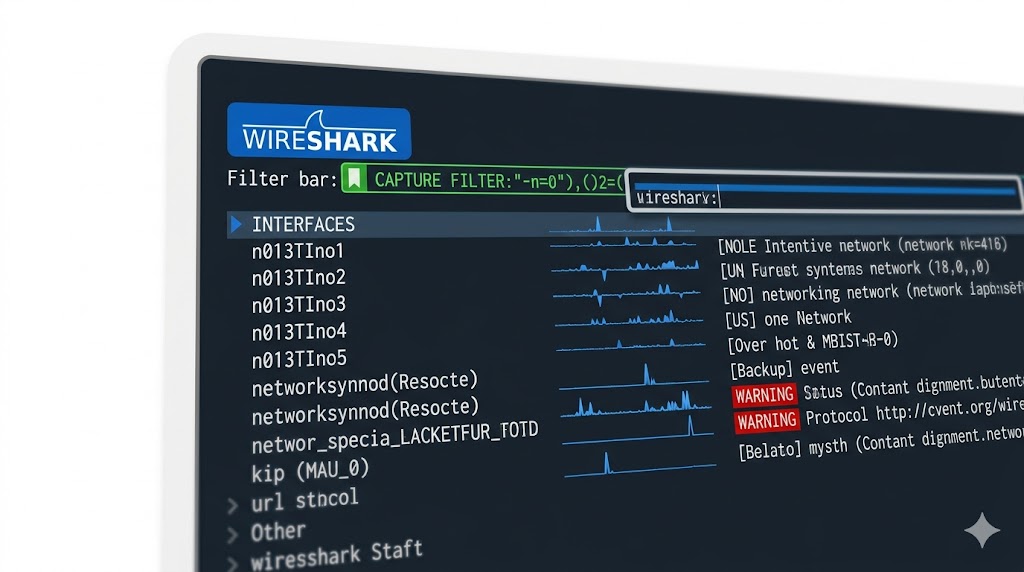
When Wireshark opens, it presents a list of available network interfaces Ethernet, Wi-Fi, loopback, and others. Each interface shows a live sparkline of current traffic so you can immediately see which one is active.
Before starting, an attacker sets a capture filter to reduce noise and focus on relevant traffic. Capture filters use BPF (Berkeley Packet Filter) syntax and are applied before packets are stored. They permanently exclude traffic that does not match, reducing file size and keeping the capture focused.
Common capture filters used in attacks:
tcp port 80 (capture all HTTP traffic)tcp port 21 (capture FTP traffic)tcp port 23 (capture Telnet traffic)host 192.168.1.10 (capture traffic to/from a target IP)port 80 or port 443 (capture all web traffic)not port 22 (exclude SSH to avoid noise)Once the interface is selected and the filter is set, the attacker clicks the blue shark fin icon. Wireshark starts capturing. Every packet matching the filter is displayed in real time in the packet list pane.
Step 2: Reading the Packets
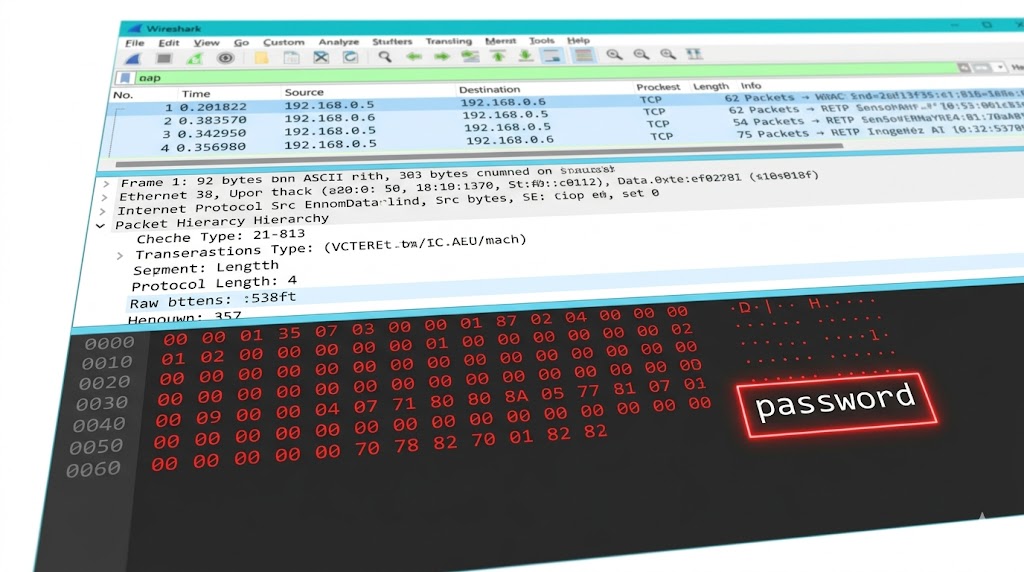
The Wireshark interface has three main panes. The packet list pane at the top shows every captured packet with timestamp, source, destination, protocol, length, and a brief summary. The packet details pane in the middle shows the full protocol breakdown of whichever packet is selected Ethernet header, IP header, TCP header, and application layer data. The packet bytes pane at the bottom shows the raw hex and ASCII representation of the packet.
For an attacker looking at HTTP traffic, the packet bytes pane is where things get interesting. On an unencrypted HTTP connection, the actual content of the request including form fields, login credentials, and session cookies is visible as plain readable text in the ASCII column. No decryption needed. No special tools required. Just scroll through the bytes.
Step 3: Using Display Filters to Find What Matters
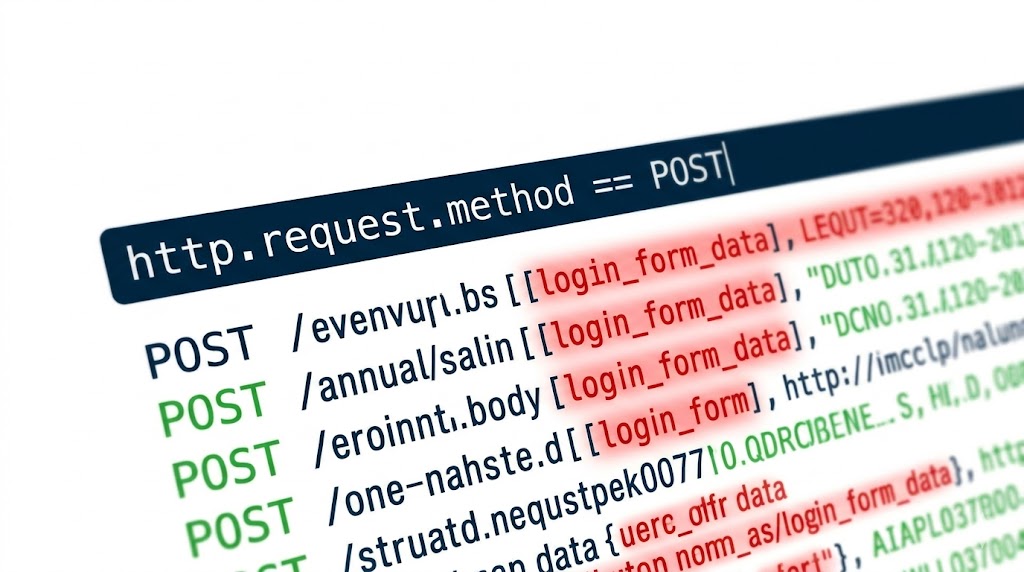
After capture, the attacker uses display filters to find exactly what they are looking for. Unlike capture filters which are applied before storing packets, display filters are applied after capture and can be changed on the fly without stopping the session.
Key display filters used to extract sensitive data:
http (show all HTTP traffic)http.request.method == "POST" (show only POST requests login forms)ftp (show FTP traffic including credentials)telnet (show Telnet sessions in plaintext)dns (show all DNS queries)ip.addr == 192.168.1.10 (filter traffic by IP address)tcp.stream eq 5 (follow a specific TCP conversation)The most powerful feature for credential capture is Follow TCP Stream. Right-click any packet in a session and select Follow → TCP Stream. Wireshark reassembles the entire conversation between client and server and displays it as readable text. A login over HTTP shows the username and password in the POST body. A Telnet session shows every keystroke typed.
What an Attacker Can See
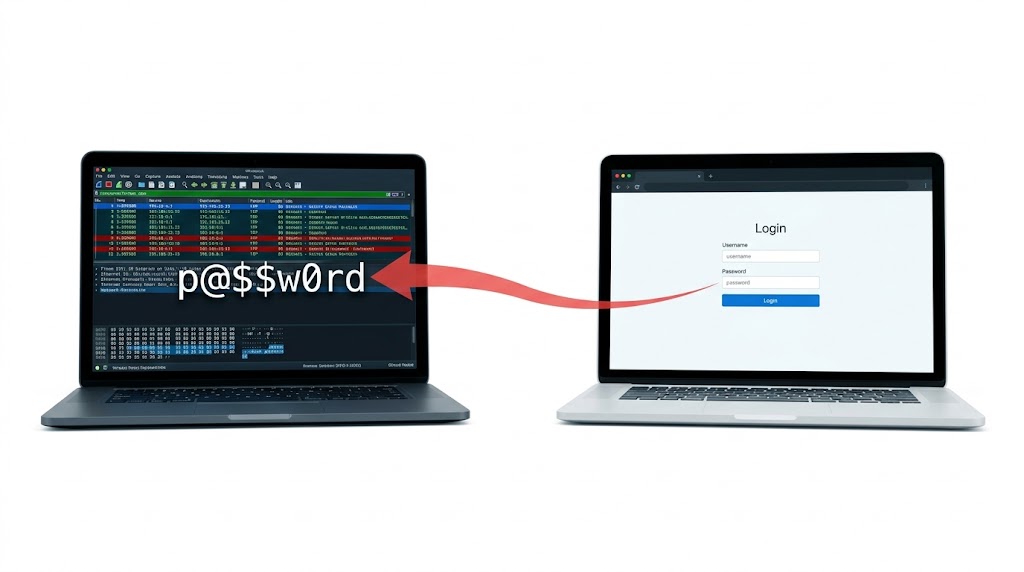
On protocols that do not encrypt their traffic, Wireshark reveals everything. This is what becomes visible in a live capture:
• HTTP login forms — username and password submitted via POST request appear in plain ASCII
• FTP credentials — the USER and PASS commands are sent in cleartext over port 21
• Telnet sessions — every character typed including passwords is captured as individual TCP packets
• DNS queries — every domain the victim visits is visible even without seeing the page content
• Session cookies — HTTP cookie headers can be extracted and used to hijack authenticated sessions
• Email content — SMTP, POP, and IMAP traffic sent without TLS is fully readable
HTTPS, SSH, and SFTP protect traffic from being read even when captured. If the target uses only encrypted protocols, Wireshark shows the encrypted payload unreadable without the private key.
Things to Keep in Mind
• Capture filters use BPF syntax and are set before the capture starts they permanently exclude traffic that does not match
• Display filters use Wireshark syntax and are applied after capture they hide packets but do not delete them
• Follow TCP Stream is the fastest way to read a full conversation including login credentials on unencrypted protocols
• Encrypting your traffic with HTTPS, SSH, and TLS means that even if packets are captured, the content is unreadable
• Wireshark only works for capturing purposes on networks where the attacker receives the traffic on switched networks, ARP poisoning must be used first to redirect traffic
Want to dive deeper?
Explore our certified internship and certification programs related to this topic.

Edwin Saji
Intern at Edwhere